

Your profile photo
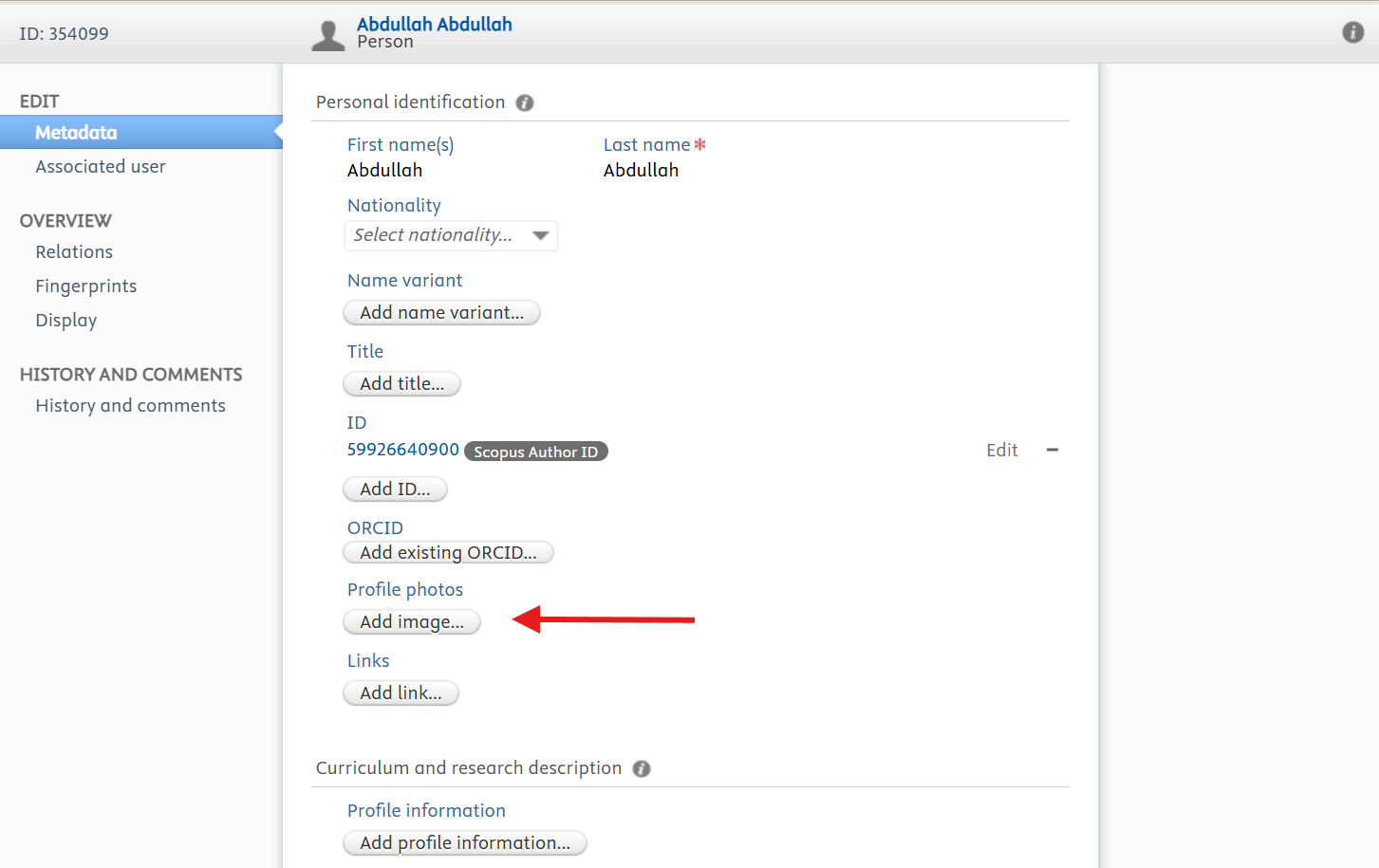
A photo makes your profile recognisable and is often the first thing a visitor notices. Profiles with a photo are also easier for the media and for prospective students to identify.
- 1Open the profile editor.
- 2Under Personal identification, find Profile photos and click Add image…
- 3Drag your photo into the upload area, or click browse to pick it from your computer.
- 4Set Category to Portrait, and fill in the caption and alt-text if you wish.
- 5Click Create, then Save at the bottom of the page.
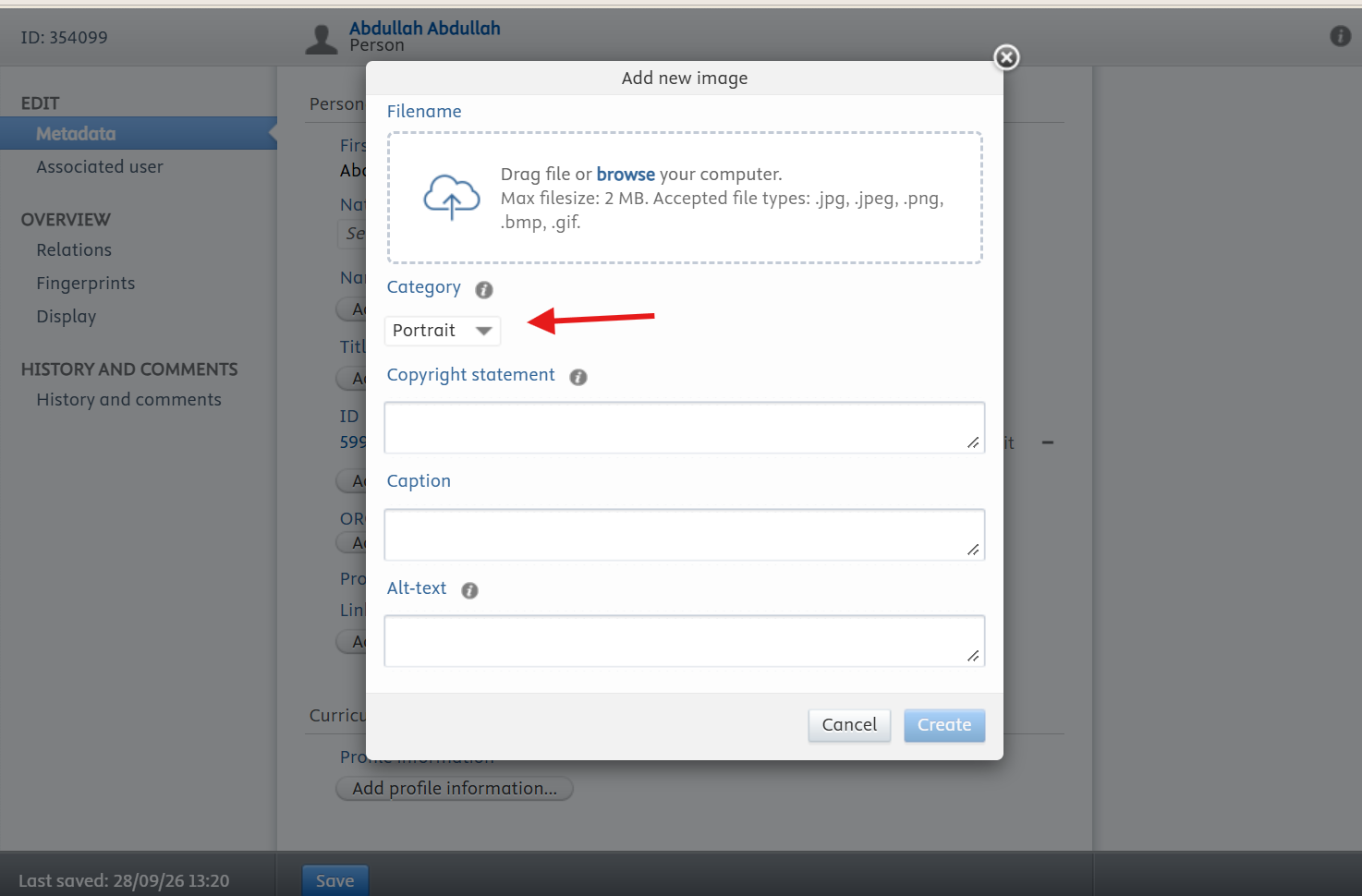
- Accepted file types are .jpg, .jpeg, .png, .bmp and .gif, up to 2 MB.
- Upload a square image, at least 500 × 500 pixels.
- Use a recent, professional headshot with your face centred.
- Choose a plain background, and avoid group photos and images with text.
Before you leave the editor, click Save at the bottom of the page. Changes are only stored when you save, and anything you entered is lost if you navigate away first.